What a screen reader user hears in your video call
Video call interfaces are among the hardest things to make accessible: the main content is not text and the state changes every few seconds. The five problems I find most often, what fixes each one, and how to test it by ear.
Asghar Ali · Chief Technology Officer, Kakushin.io LTD
I have been building video calling on WebRTC since 2015, starting with telemedicine, where the person on the other end of the call was often a patient who could not simply switch to a different app. The media layer gets most of the engineering attention: NAT traversal, relays, codecs, bandwidth. The interface around it gets less, and for people who use a screen reader or a keyboard, that is where the call usually breaks.
Call interfaces are a hard case for accessibility, for two reasons. The main content, faces and voices, is not text, so there is nothing for a screen reader to read. And the state changes constantly: people join and leave, the network wobbles, someone starts recording, someone else starts talking. A sighted user takes all of that in at a glance. A screen reader user gets only what the interface chooses to say.
These are the five problems I find most often, and what fixes each one.
1. The controls have no names
The typical call toolbar is a row of icons. Microphone, camera, screen share, hang up. Visually it is clear. To a screen reader it is often five controls that are each announced as "button", because the icon is an SVG with no text alternative and nobody gave the button a name.
The fix is small: every control gets an accessible name, from visible text or
from aria-label. The part people get wrong is the state. A mute button has
two jobs: it says what it does and whether it is currently on. There are two
correct ways to do that, and one common wrong one.
<!-- Right: a fixed name, with state carried by aria-pressed -->
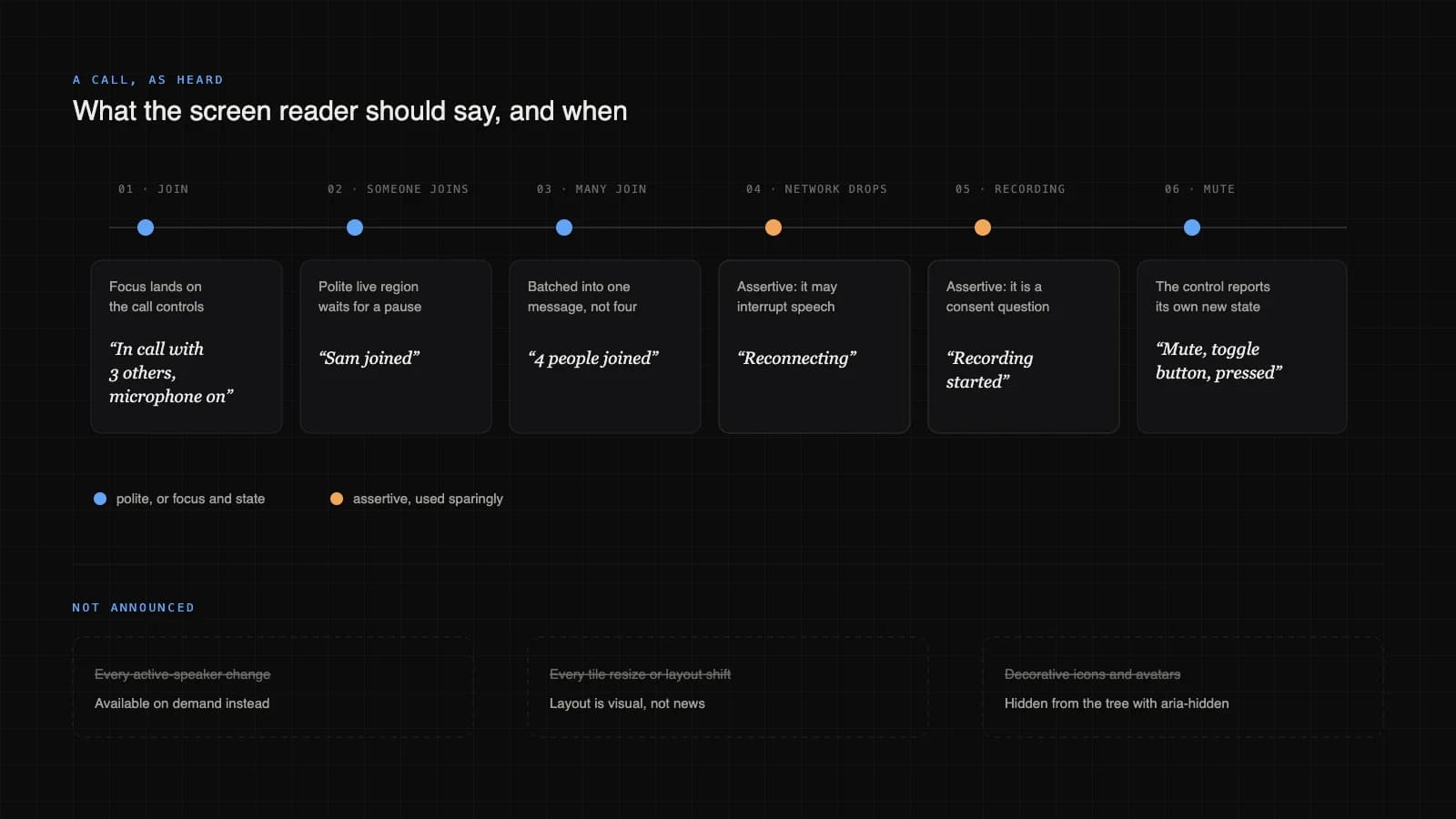
<button aria-pressed="true">Mute</button>
<!-- NVDA says roughly: "Mute, toggle button, pressed" -->

<!-- Also right: the name changes, no aria-pressed -->
<button>Unmute microphone</button>

<!-- Wrong: both at once -->
<button aria-pressed="true">Unmute</button>
<!-- "Unmute, pressed": is the microphone on or off? -->
Pick one pattern and use it for every toggle in the toolbar. The failure is not only the missing name. It is a user pressing a button and having no way to find out whether it worked. This is WCAG success criterion 4.1.2, Name, Role, Value, at level A: the most basic tier.
2. Things happen, and nobody says so
Someone joins. A banner slides in: "Sam joined." A sighted user sees it; a screen reader user hears nothing, because the banner is just new text somewhere on the page, and screen readers read where the user is, not everything that changes.
The tool for this is a live region: an element marked aria-live whose content
changes are spoken without moving the user's focus. WCAG covers it under 4.1.3,
Status Messages, at level AA. Three details decide whether it helps or annoys:
- The region must exist before the message does. Render an empty live region when the call screen loads and put text into it later. A region that is created and filled in the same moment is often not announced at all.
- Choose the politeness level.
politewaits for a pause in speech, and is right for joins, leaves, hands raised and chat messages.assertivecan interrupt, and I keep it for two things: the connection dropping, and recording starting. Recording is a consent question, so the user needs to hear it now, not after the current sentence. - Batch the noise. In a thirty-person meeting, announcing every join makes the screen reader unusable for the first five minutes. Collect events over a second or two and say "4 people joined" once.
Just as important is what not to announce. Active-speaker changes are the classic mistake: in a lively call, the speaker changes every few seconds, and announcing each change buries everything else. Make it available on demand, in the participant list or through a shortcut, instead of pushing it.
3. Focus goes nowhere, or everywhere
When the call connects, where is keyboard focus? Often it is still on the "Join" button that no longer exists, which in practice means it has fallen back to the top of the page. The user tabs forward through the whole page to find the mute control.
Move focus deliberately, and only at the moments that call for it:
- When the call connects, put focus on the call controls or on a heading for the call, and let that element say what just happened: "In call with 3 others, microphone on."
- When a dialog opens, such as the device picker or the settings panel,
keep focus inside it until it closes, then return focus to the control that
opened it. The native
<dialog>element opened withshowModal()does most of this for you. - When the call ends, move focus to something meaningful, such as the "Rejoin" button or the summary, not the top of an empty page.
And make sure focus is visible. A focus ring drawn over a moving video tile needs a solid backing to stay visible, and WCAG 2.2 added criterion 2.4.11, Focus Not Obscured, for exactly the case where a floating toolbar or chat panel covers the focused element.
4. The shortcuts fight the screen reader
Keyboard shortcuts are an accessibility feature, until they collide. NVDA and JAWS use single letters for navigation while reading a page: H jumps to the next heading, B to the next button, F to the next form field. A call app that binds a bare letter to "raise hand" or "toggle camera" either never receives the key, or fires it when the user was trying to move around the page.
WCAG 2.1.4, Character Key Shortcuts, at level A, requires that any single-character shortcut can be turned off, remapped, or only works when the relevant control has focus. The practical pattern is the one the large platforms use: modifier combinations such as Ctrl+D to mute, a list of shortcuts the user can open from the keyboard, and a setting to switch them off.
5. Meaning lives in colour and motion
Who is talking? Usually a coloured border around a video tile. Who is muted? A small red icon in the corner. Both are invisible to a screen reader, and colour alone fails people who do not see that colour distinction, which is criterion 1.4.1, Use of Color.
Give every tile the participant's name as text, and expose the state as text as well: "Sam, muted". Captions belong here too. Live captions from speech recognition help deaf and hard-of-hearing participants, and everyone on a bad connection. Place them where they do not cover faces and let people resize them. Any text drawn over video needs its own solid background: the contrast of white text over a moving picture changes with every frame.
Motion is the other half. Tiles that slide and zoom on every speaker change
are tiring for anyone, and a real problem for people with vestibular
disorders. When the system is set to reduce motion (prefers-reduced-motion),
switch layouts without the animation.
How to test it: by ear
Automated scanners are worth running. They catch missing names, missing labels and contrast failures quickly. They cannot tell you whether a call makes sense when you cannot see it, so the real test is a person with a screen reader.
Which screen readers? WebAIM's most recent screen reader user survey (1,539 respondents, December 2023 to January 2024) found JAWS as the primary desktop screen reader for 40.5% of respondents, NVDA for 37.7% and VoiceOver for 9.7%. On mobile, VoiceOver on iOS and TalkBack on Android dominate. My usual order:
- NVDA with Chrome or Firefox on Windows. NVDA is free, so there is no excuse not to start here.
- VoiceOver on an iPhone and a Mac. It is built in, and on mobile it is the one most of your users will have.
- JAWS, when the product is sold into enterprises and government, where JAWS is common.
- TalkBack on Android, for the mobile app.
The pass itself takes about fifteen minutes per flow. Turn the monitor off, join a call from a second device, and try to do the basics: join, mute and unmute, share your screen, find out who is in the call, read a chat message, leave. Every time you have to turn the screen back on to find out what happened, you have found a bug.
Accessibility-aware, not certified
I build to WCAG 2.2 AA and test with the screen readers people actually use. That is not the same as a formal conformance report, which should come from an independent auditor, and I say so. But most of what makes a call unusable by ear is not subtle. It is a button with no name, a banner nobody hears, and a shortcut that fights the screen reader. All three are cheap to fix once someone has listened to the call.
If you are building a calling product, or you have one that works on screen but not by ear, this is the kind of work I take on.